Campaign Configuration
HireNow Portal > Recruitment Campaigns
User Story
As a recruiter of HireNow, I am able to create campaigns to meet my organisation's hiring policy so that I meet the standards required as part of hiring process.
Applicable User Roles
List of roles that have access or can use this feature.
Recruiter
Recruitment Admin
How To
Create a Campaign
A campaign is used to track applicants for a given role and configure the workflow of an applicant through the application process.
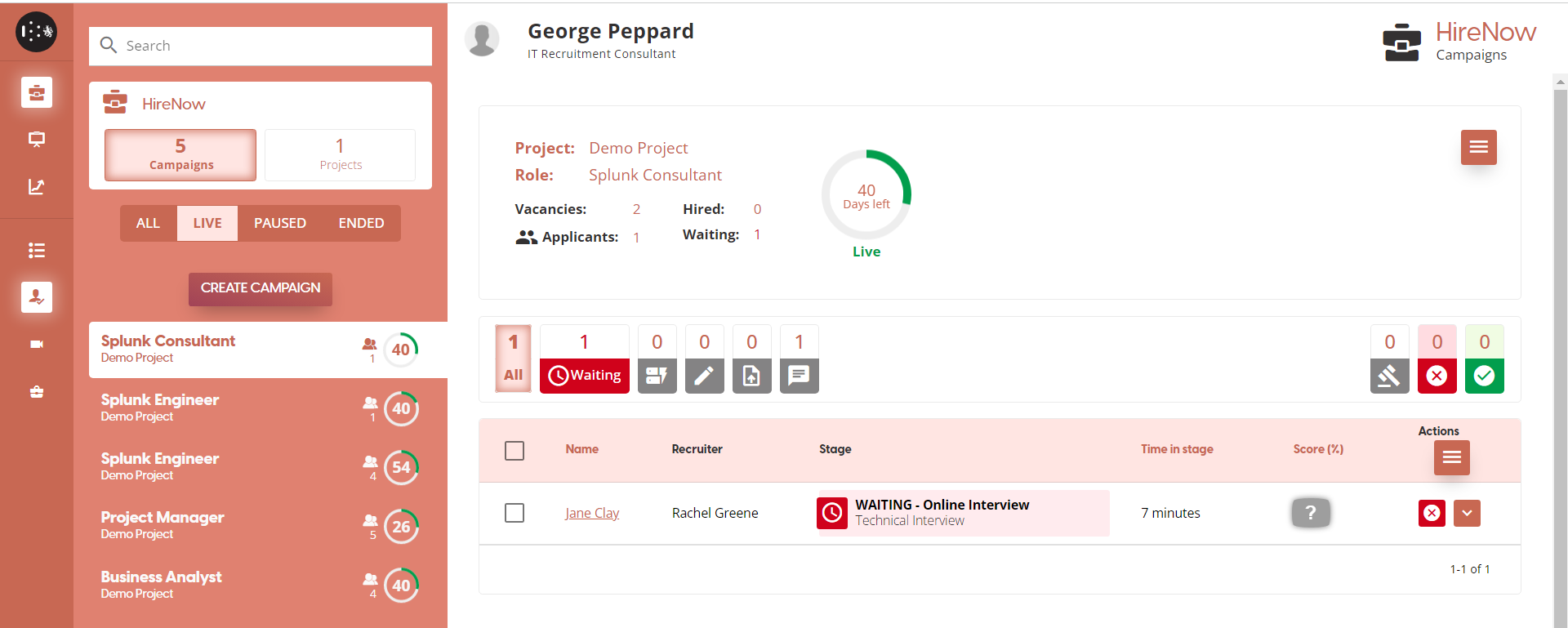
Within the Recruitment portal, select campaigns. On Campaign list in the left panel and select the “Create Campaign” button.
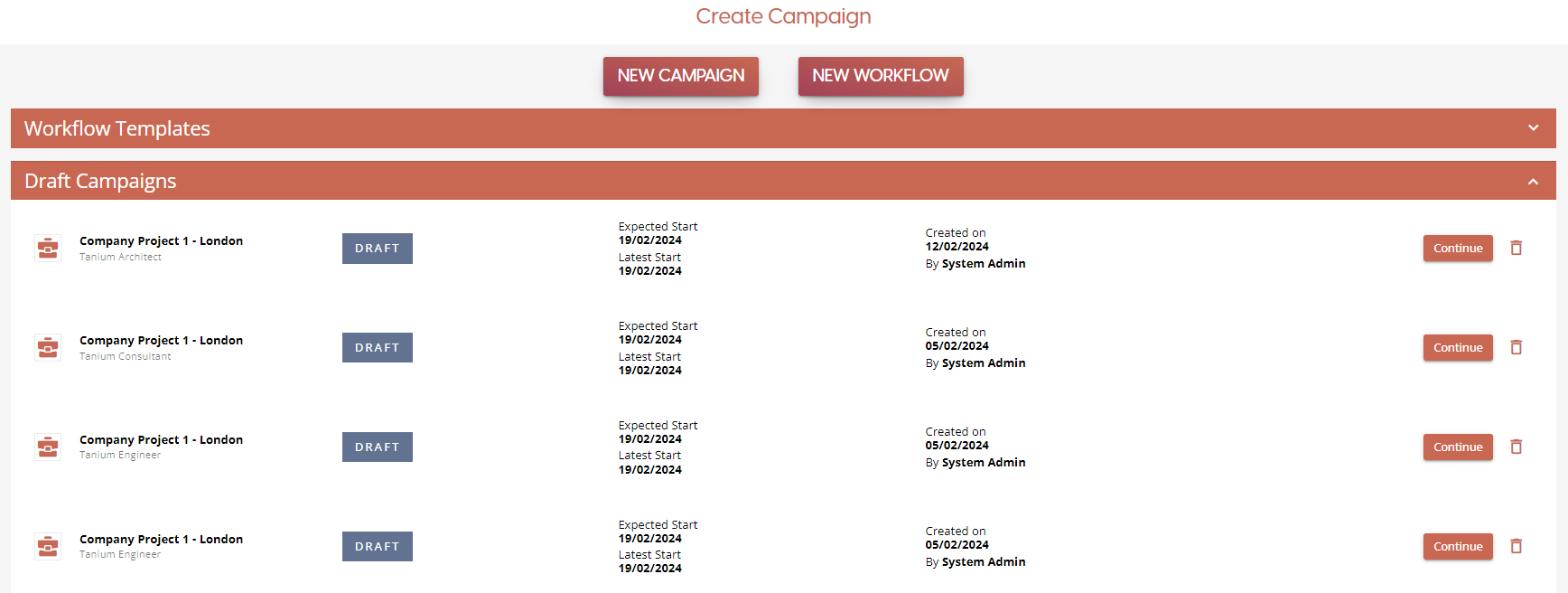
This will open the Create Campaign dialog. To start the creating a new campaign, click on the 'New Campaign' button to be taken to a blank Campaign Settings page.
If you have previously started a creating a campaign, a list of campaigns in the draft state can be seen by expanding the 'Draft Campaigns' section. To carry on with the campaign configuration, click on the 'Continue' button to continue from the Campaigns Settings page. If you wish to delete any of the campaigns in the draft list, click on the Bin icon instead to permanently delete the campaign.
Campaign Settings
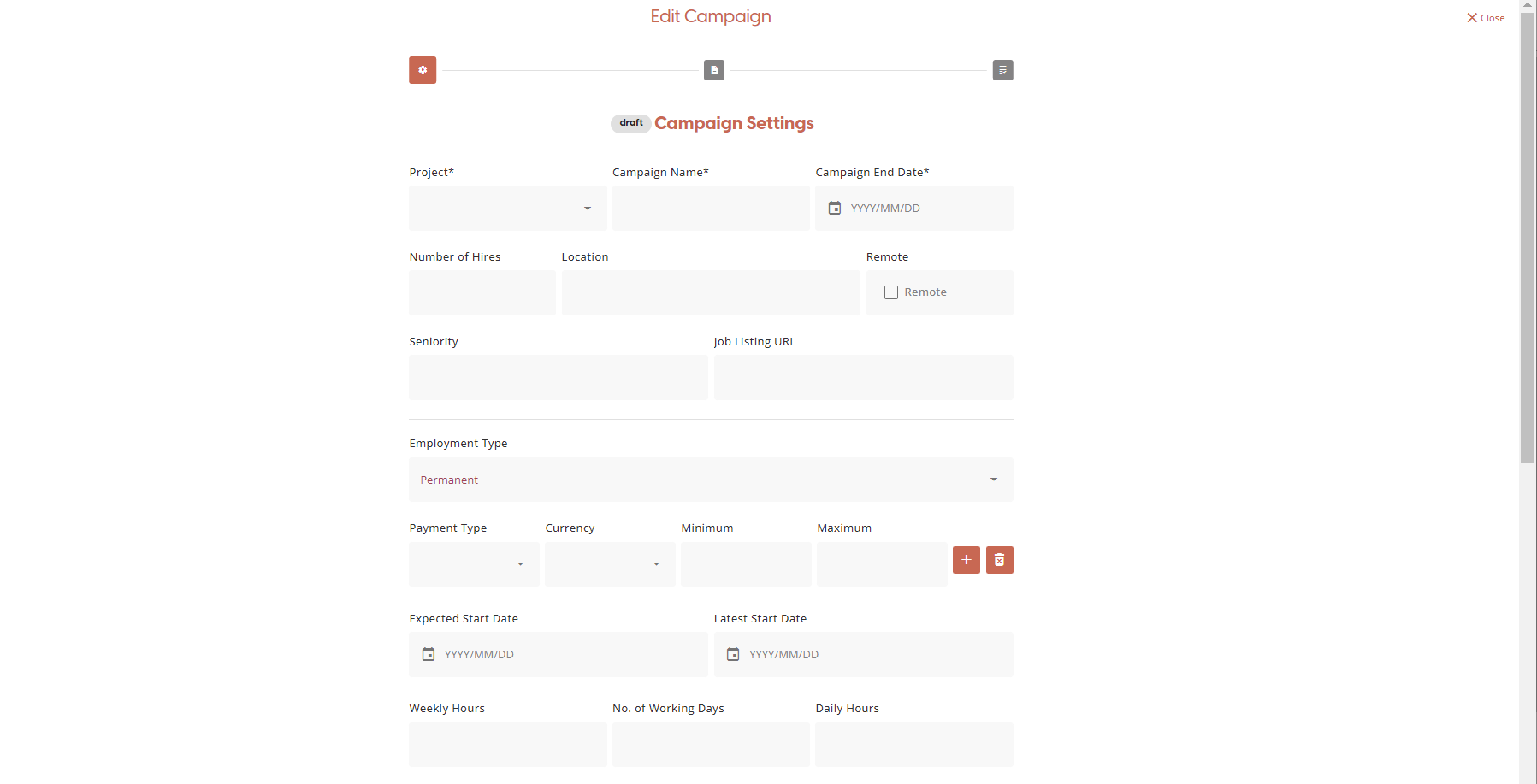
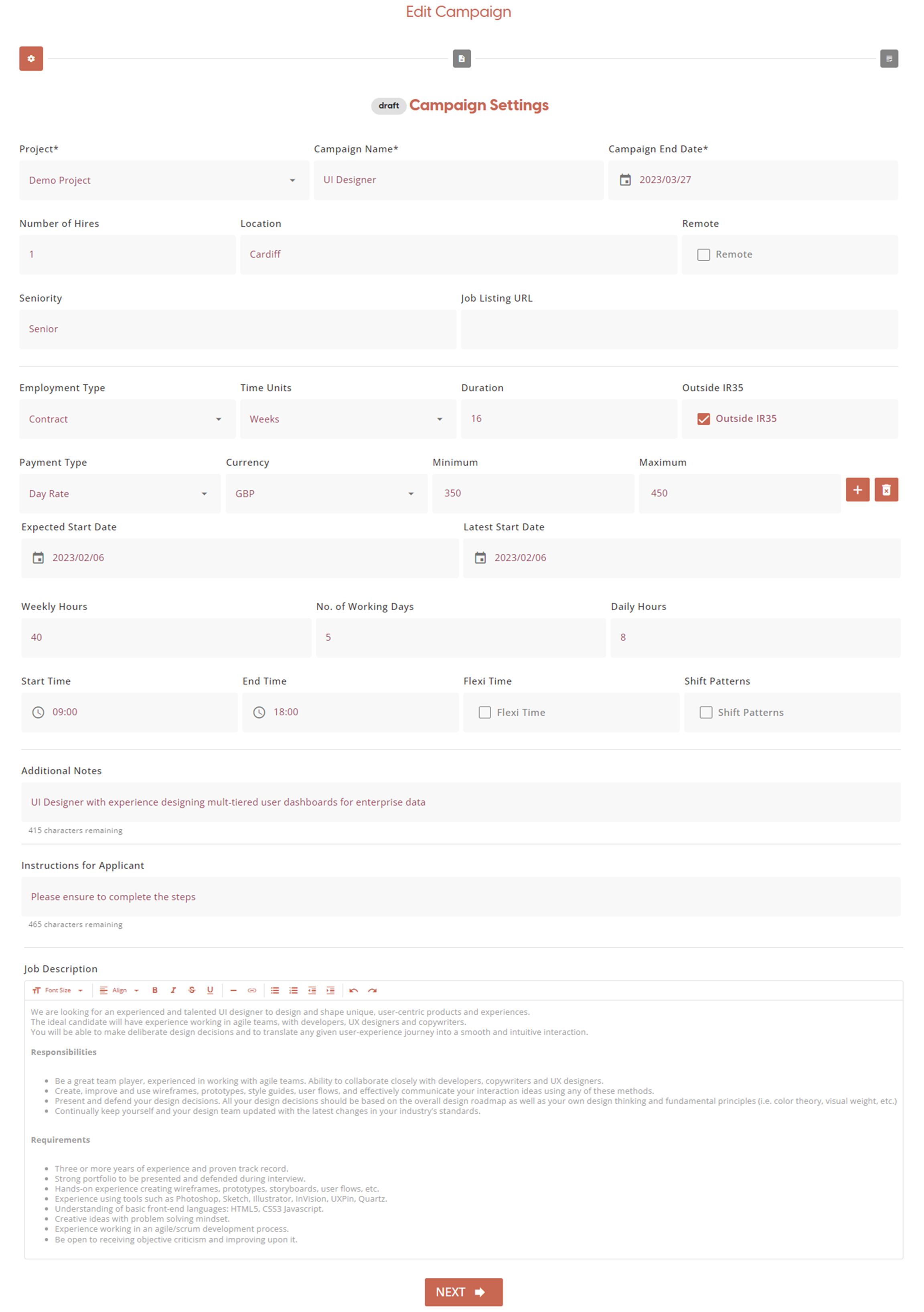
On the Campaign Settings page you can enter a range of details relating to the job listing you are configuring for applicants to apply for.
Only the first three fields are mandatory, but the more detail you provide here, the richer the experience will be for your applicants.
Empty Form
Example Completed Form
Applicant Instructions
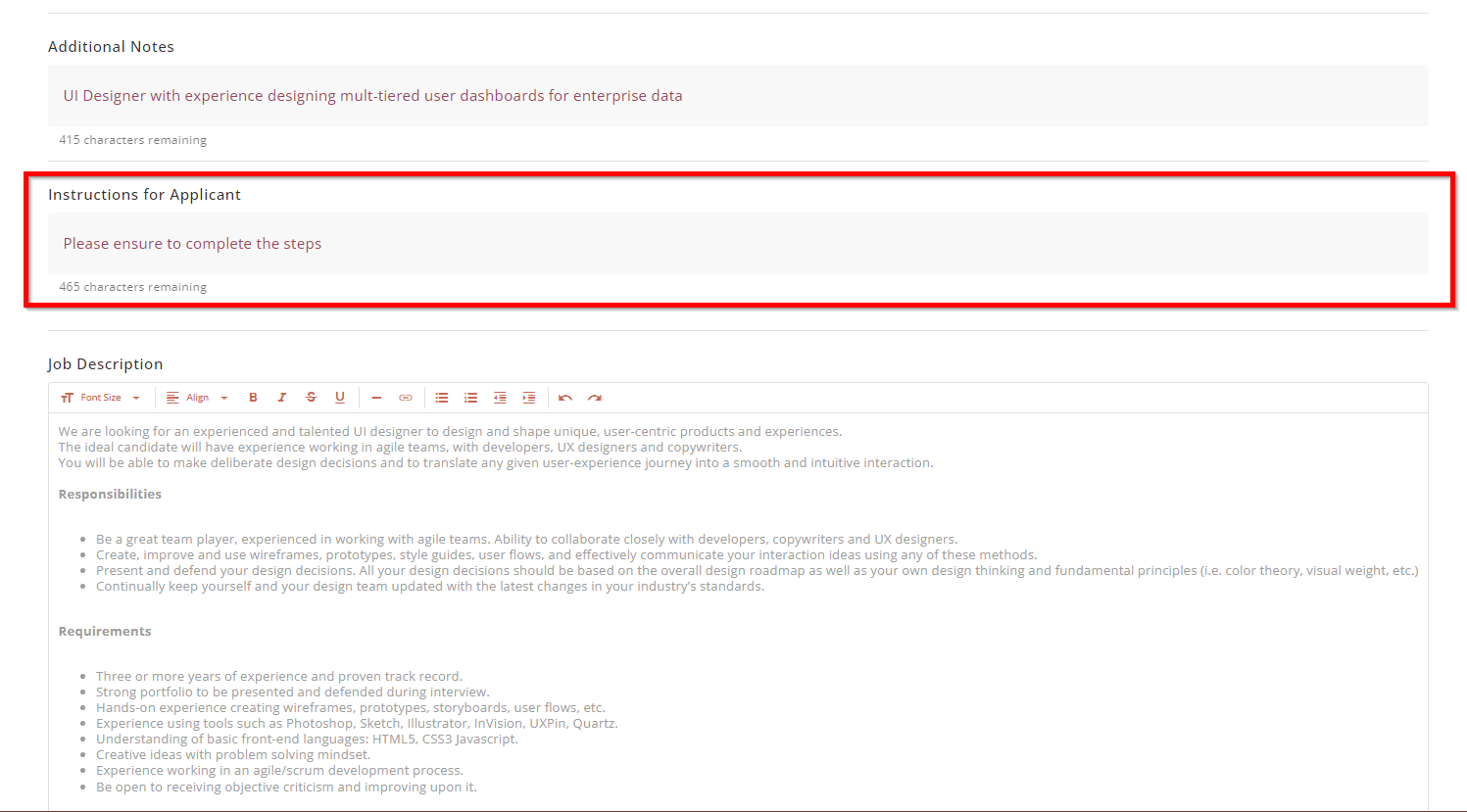
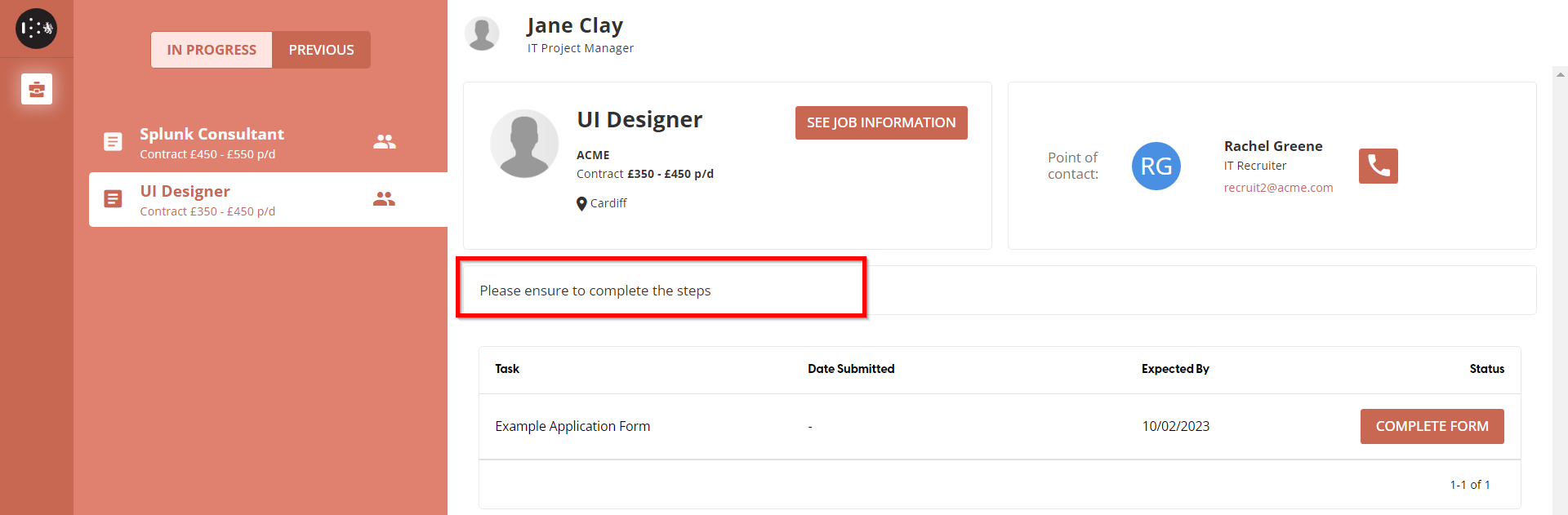
To provide guidance to an applicant on the applicant dashboard, there is an option to configure Applicant Instructions on a per campaign basis. This can be set on the campaign configuration screen in the Applicant Instruction section.
Applicant Instructions - Campaign Configuration - Recruiter View
Applicant Instructions - Applicant Dashboard - Applicant View
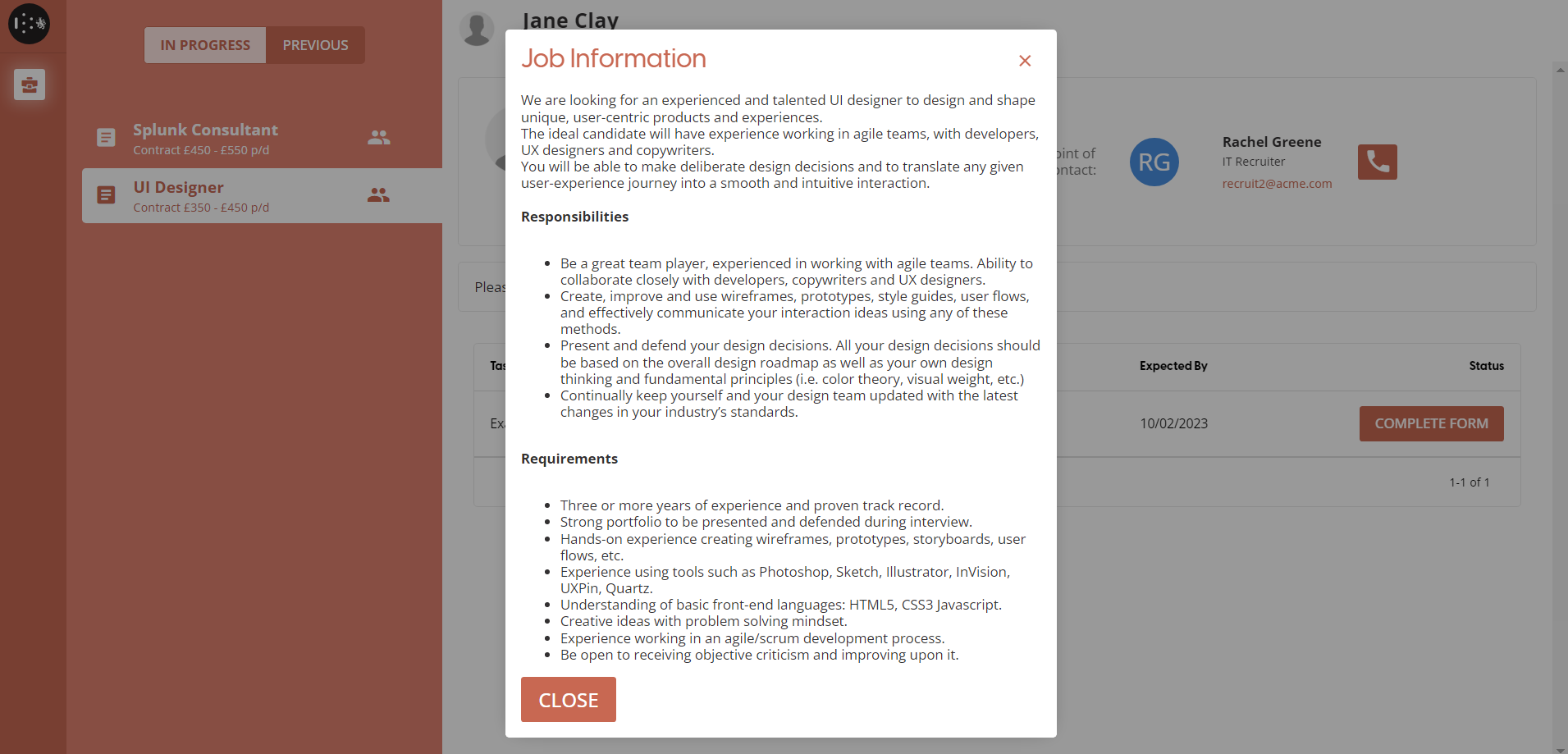
Job Description
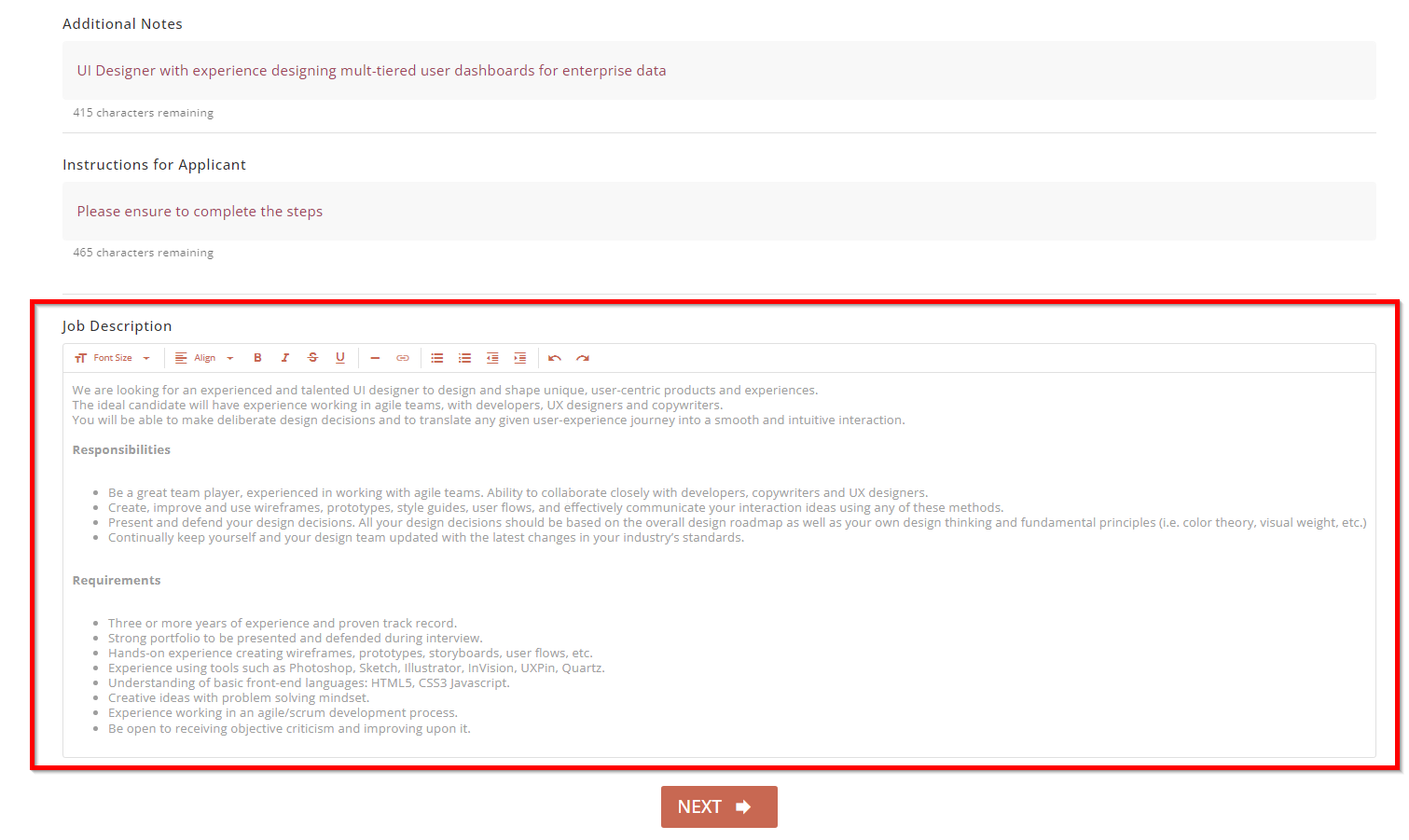
This rich text field can be used to provide full details of the job description for this campaign. It is displayed to both the applicant and the recruiter through the Applicant Dashboard.
Job Description - Campaign Configuration - Recruiter View
Job Description - Applicant Dashboard - ApplicantView
Campaign Workflow Steps
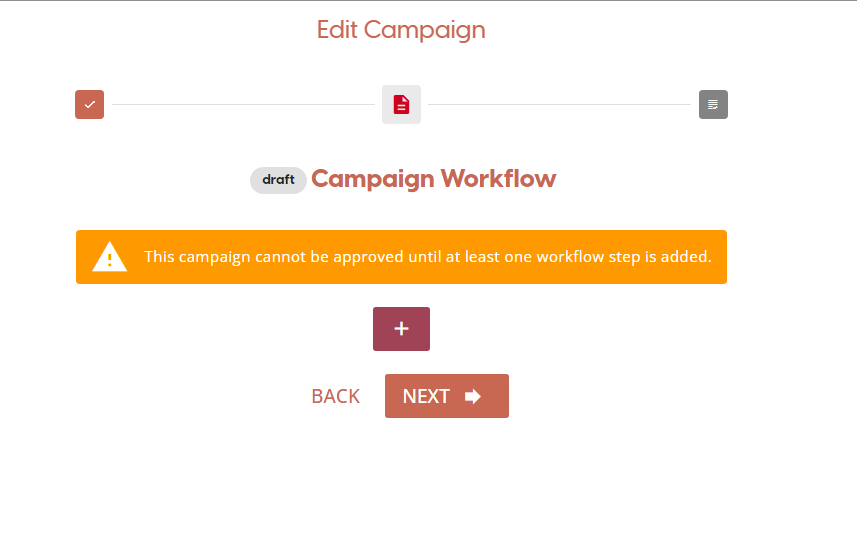
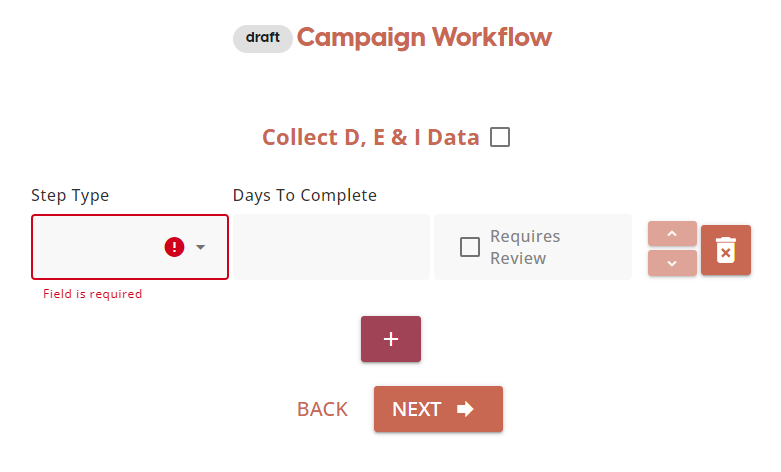
You can add workflow steps to a Campaign Workflow in this screen. Current step types available are listed below:
-
D,E & I Forms
-
Document Upload
-
Application Form
-
Assessment Test
-
Interview
A more detailed guide to each of the campaign workflow steps can be viewed here : Campaign Step Types
Example Workflow Configuration
Please ensure you choose relevant names and descriptions as these will give the applicants guidance on what they need to provide during each step of the application process.
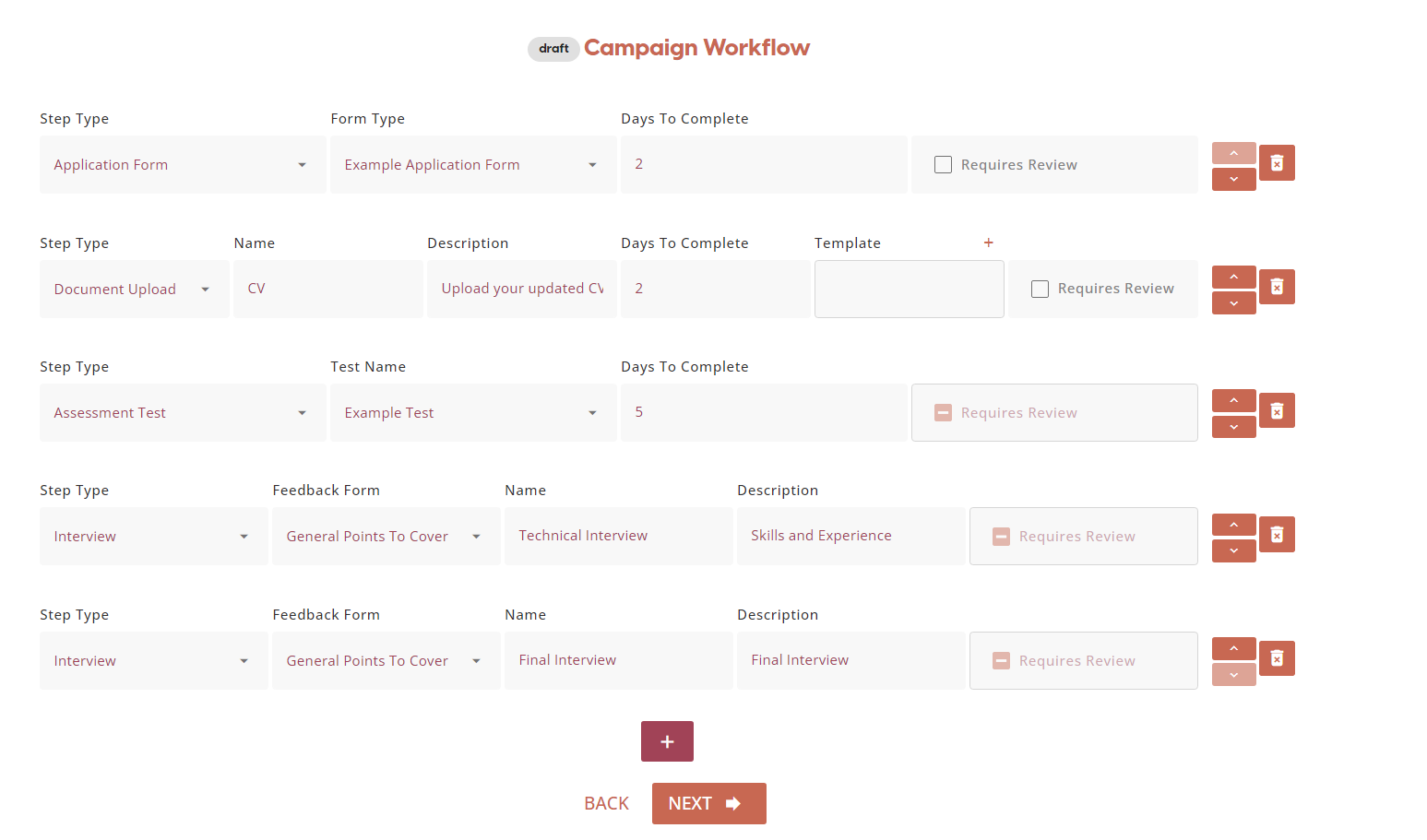
Recruiters can change the order of a campaign workflow by selecting the upwards/downwards arrows. Recruiters can also remove a workflow step by selecting the blue bin icon. To add another Campaign Workflow Step, you can click the '+' at the bottom of the list of the current campaign steps.
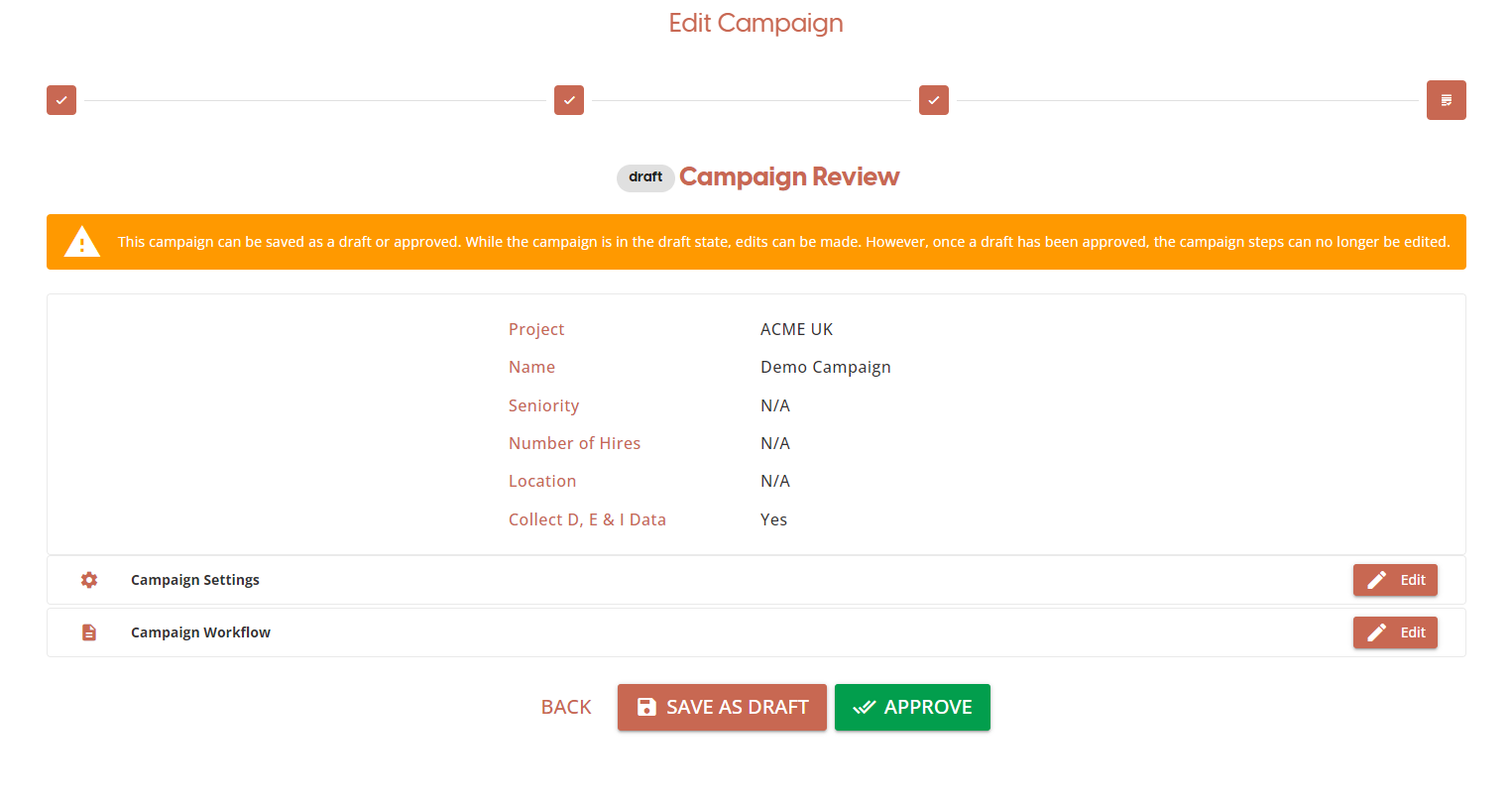
Campaign Review
At the review stage you can edit any of the previous configuration steps and choose to “Save as Draft” or “Approve” the current campaign. Approving the campaign will make the job listing live and allow the recruiter to share a link with prospective candidates to enable them to start the process.
⚠️ Campaign Workflow steps cannot be edited: Once you approve a campaign, the campaign workflow steps cannot be added, removed or modified. Review the workflow steps before approving the campaign.
If you wish to continue working on the campaign at a later date, click on the 'Save as Draft' button to place the campaign in a draft state. The draft campaign will then appear in the 'Continue Building' list in the Campaign Creation dialog.